Create Customer Subscription

Once you have products and rate plans set up, you need to create subscriptions to connect customers to those plans. This guide shows you how to add a subscription to a customer account.

Step 1: Go to Subscriptions

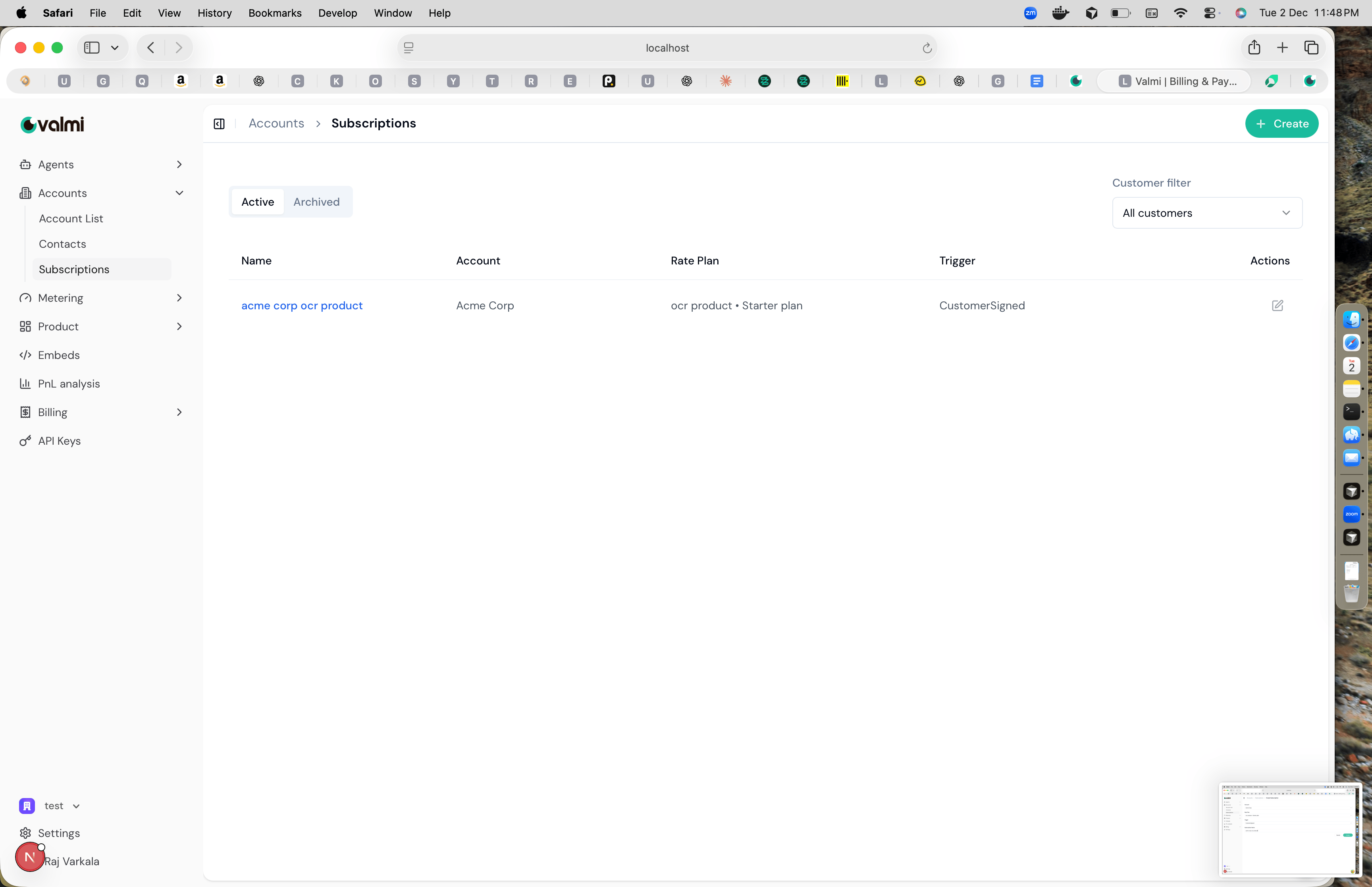
Navigate to Accounts > Subscriptions in the left sidebar. You’ll see a list of all subscriptions, both active and archived. Subscriptions list showing active subscriptions The subscriptions list shows each subscription’s name, which account it belongs to, what rate plan it uses, and the trigger that created it. You can filter by customer to see only specific accounts. Click the ”+ Create” button to add a new subscription.
Step 2: Add a Rate Plan to the Account

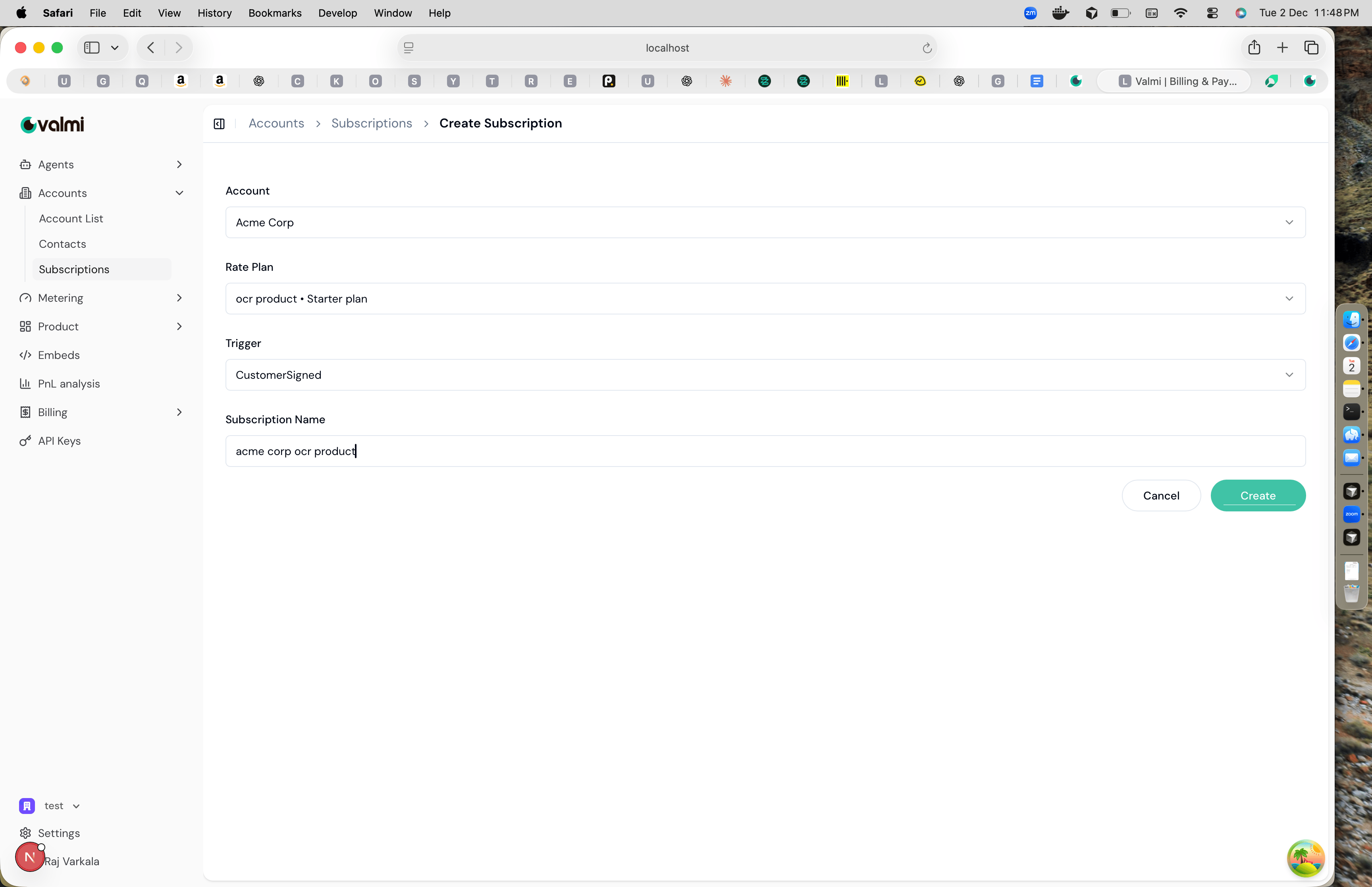
The create subscription form opens. Select the account you want to create a subscription for. This is the customer who will be billed. Create subscription form with account, rate plan, trigger, and name fields Choose the rate plan from the dropdown. This determines how the customer will be charged. The rate plan shows which product it belongs to, like “ocr product • Starter plan”. Select a trigger that determines when this subscription becomes active. Common triggers include “CustomerSigned” for when a customer signs up, or you can set it to activate immediately. Give the subscription a name that helps you identify it, like “acme corp ocr product”. This name appears in your subscriptions list and helps you track which subscription belongs to which customer. Click “Create” to finish. The subscription is now active and will start tracking usage and generating invoices according to the billing cycle in the rate plan.