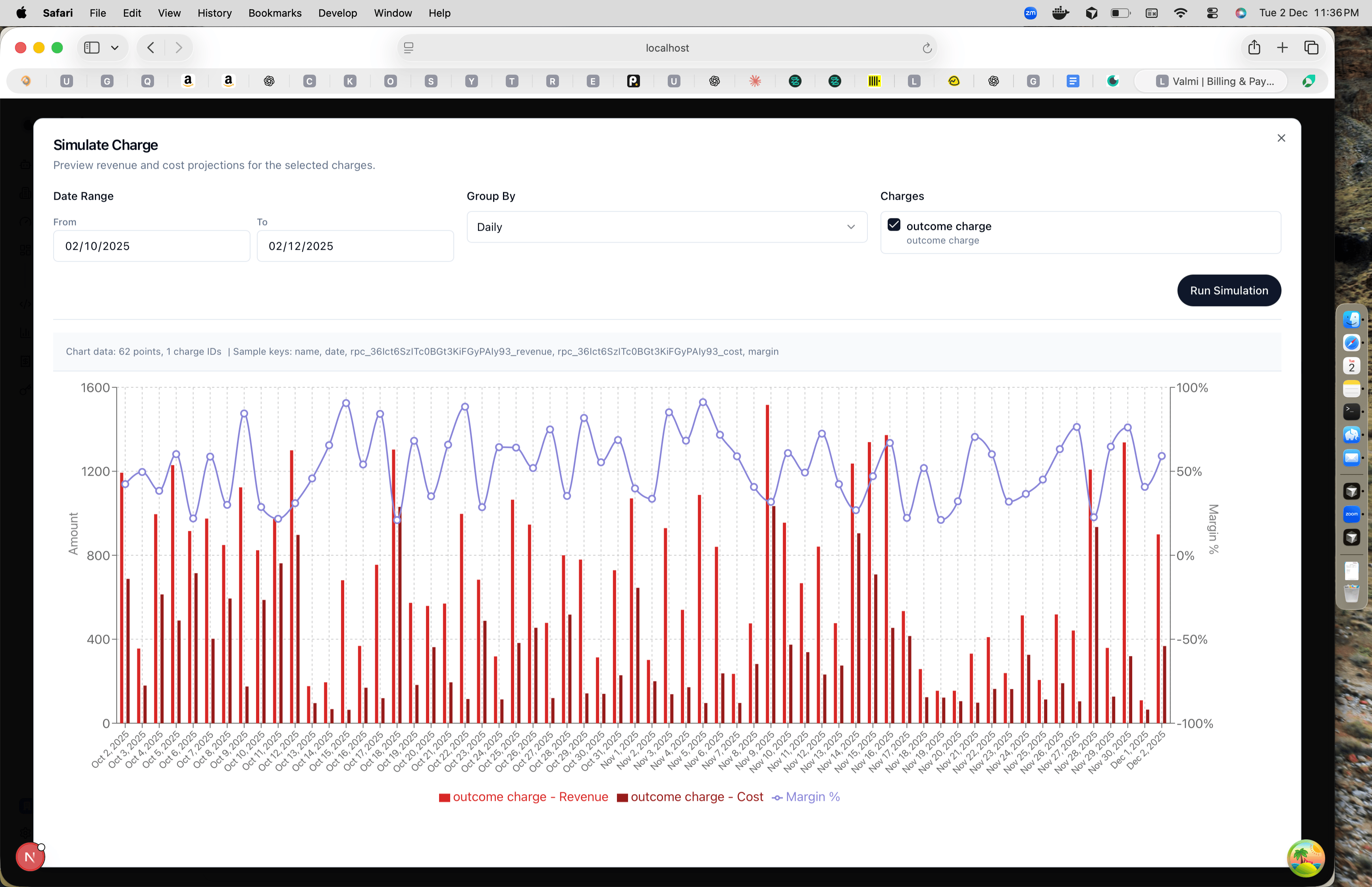
Simulate Charge Pricing
Before you commit to a pricing change, you can simulate how it will affect revenue and costs. This guide shows you how to test different price points and see the impact on your margins.Step 1: Go to Rate Plan
Navigate to your product in Product > Product Catalog. Open the product to see its detail page. You’ll see all the rate plans associated with that product. Click on the rate plan you want to test, like “Starter plan”.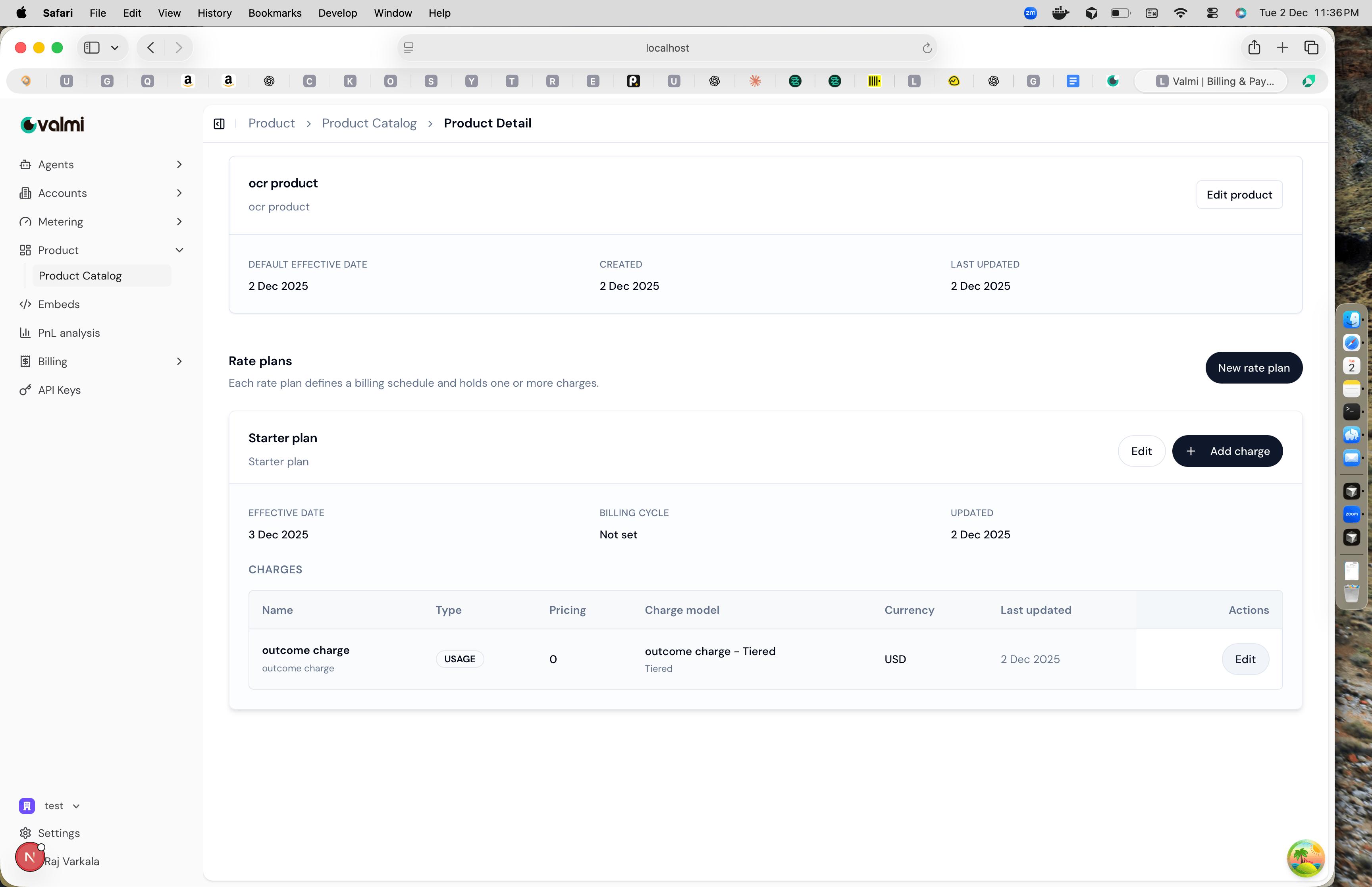
Step 2: Edit Charge
Find the charge you want to test and click the “Edit” button. This opens the charge configuration modal where you can modify the pricing.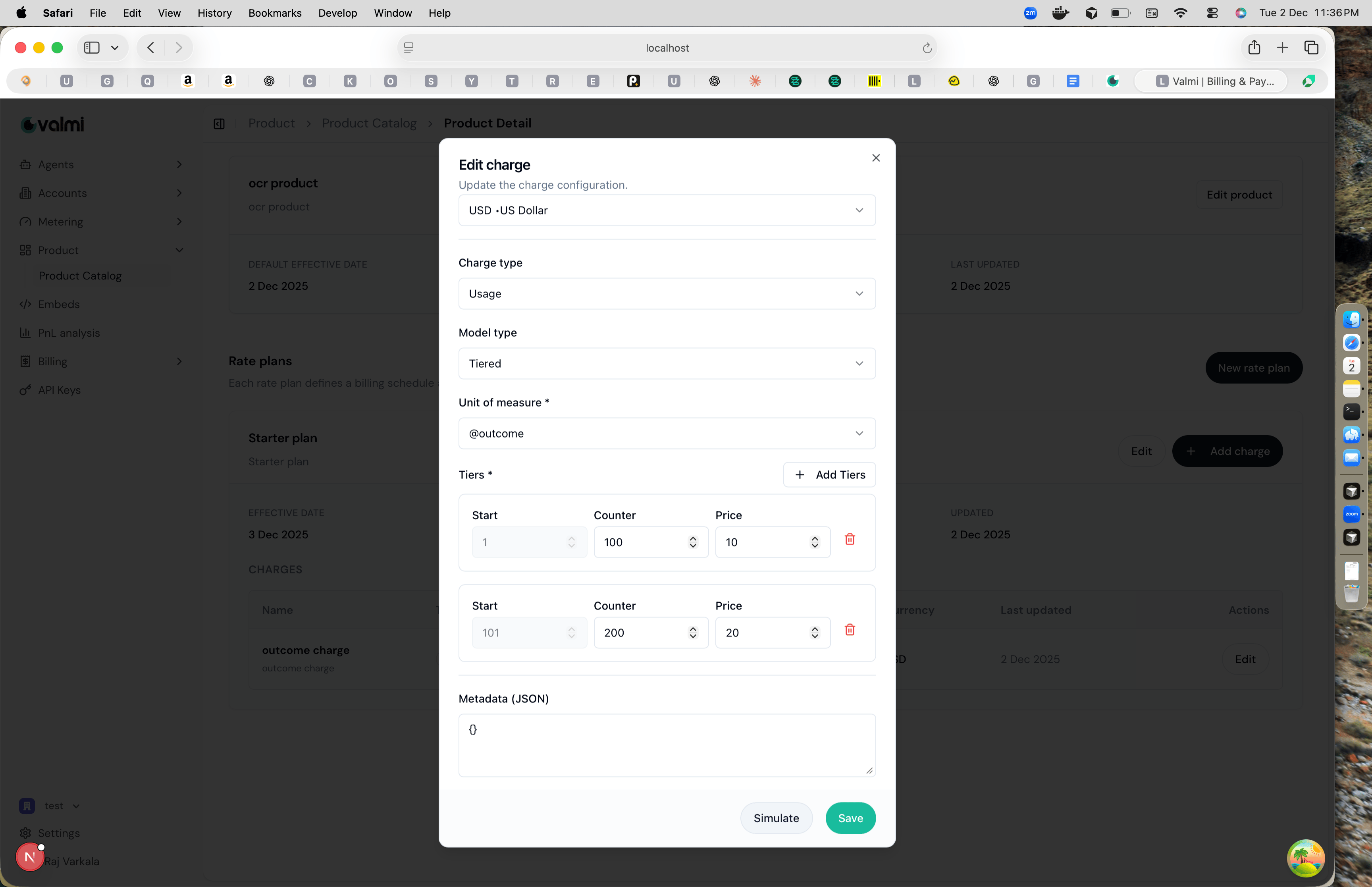
Step 3: Change Price
Modify the prices in your tiers to test different scenarios. For example, if your first tier currently charges $10 per@outcome for the first 100 outcomes, you might change it to $15 to see how that affects revenue.
You can adjust any tier’s price using the up and down arrows, or type directly into the price field. You can also add new tiers or remove existing ones. The changes you make here are only for simulation - they won’t be saved until you click “Save”.
Step 4: Simulate
Click the “Simulate” button to see how your pricing changes would work. The simulation opens in a new view.