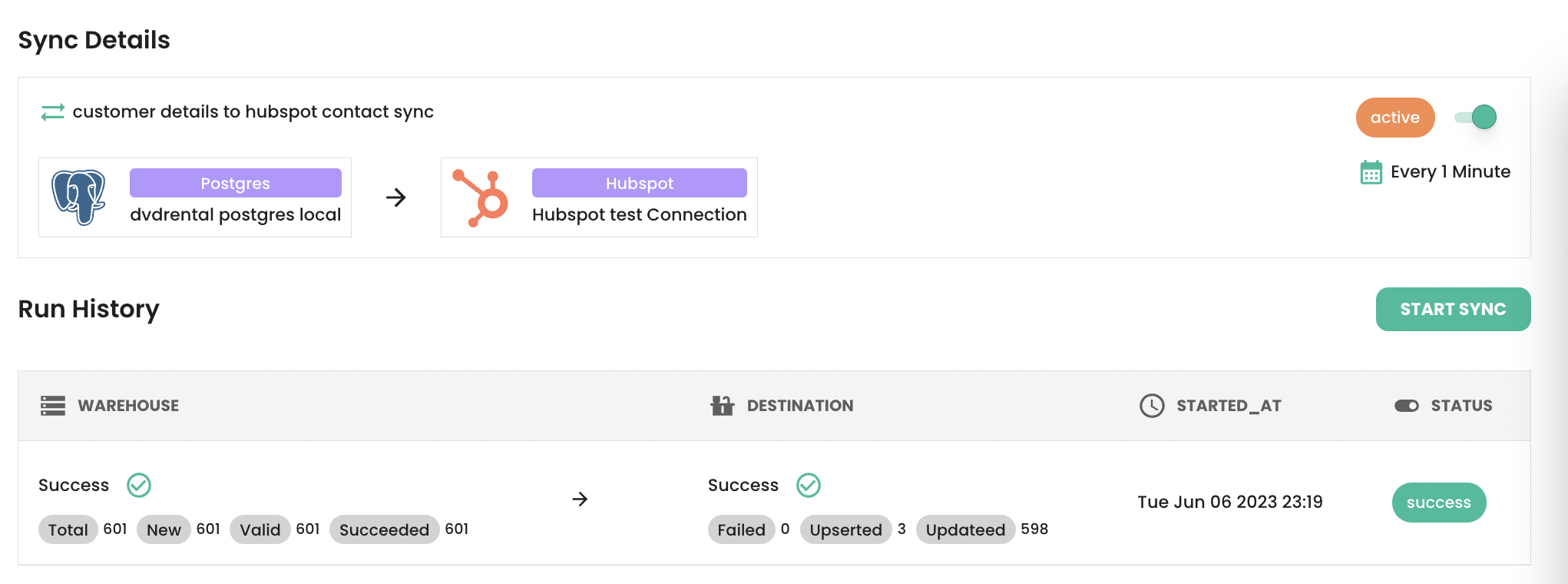
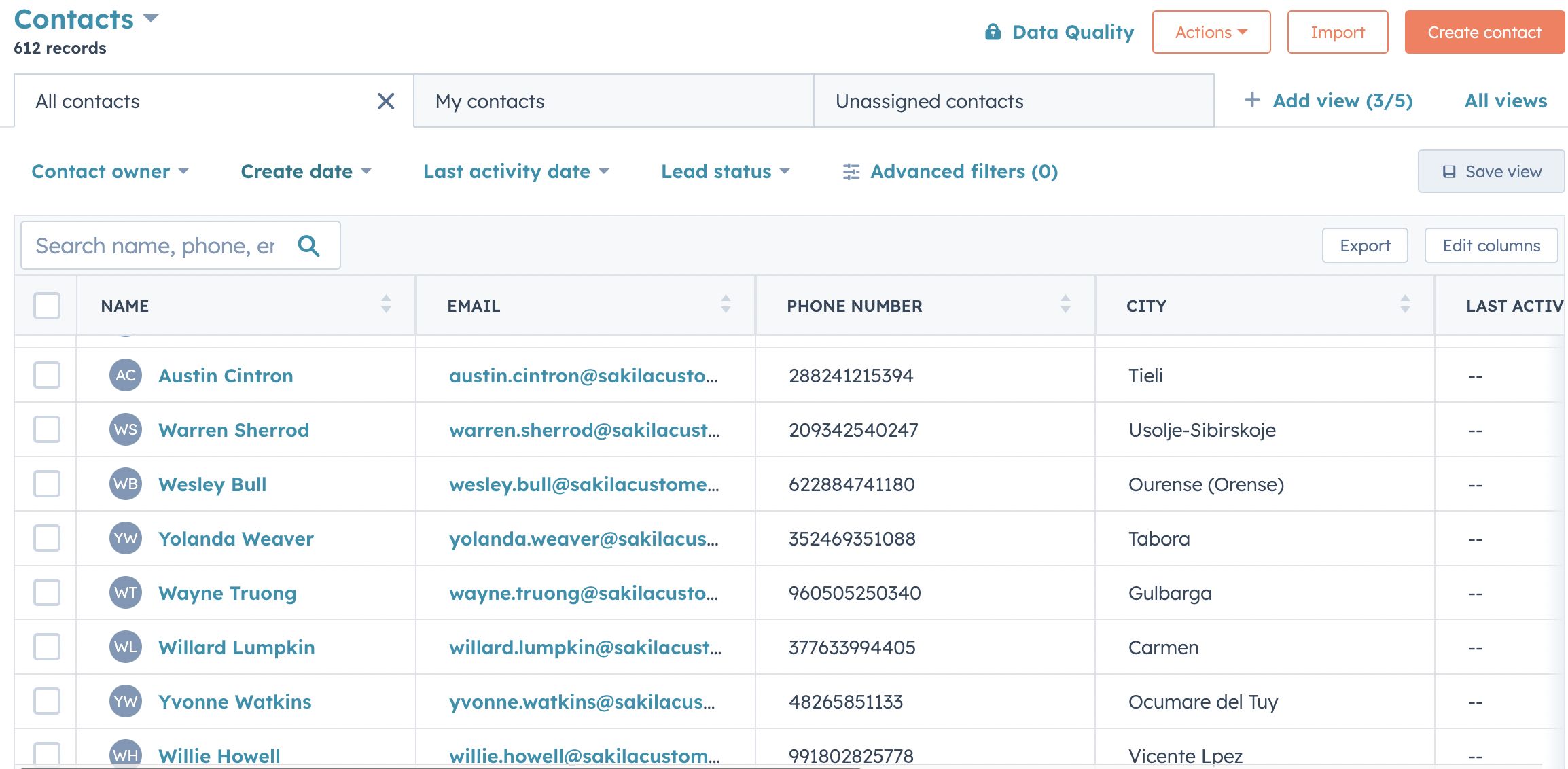
Introduction
Hubspot CRM objects can be updated with customer data from other sources. Through valmi.io, you can sync your curated customer data on your warehouse to Hubspot CRM. You can then use the data to create lists, ads and campaigns.Hubspot Configuration
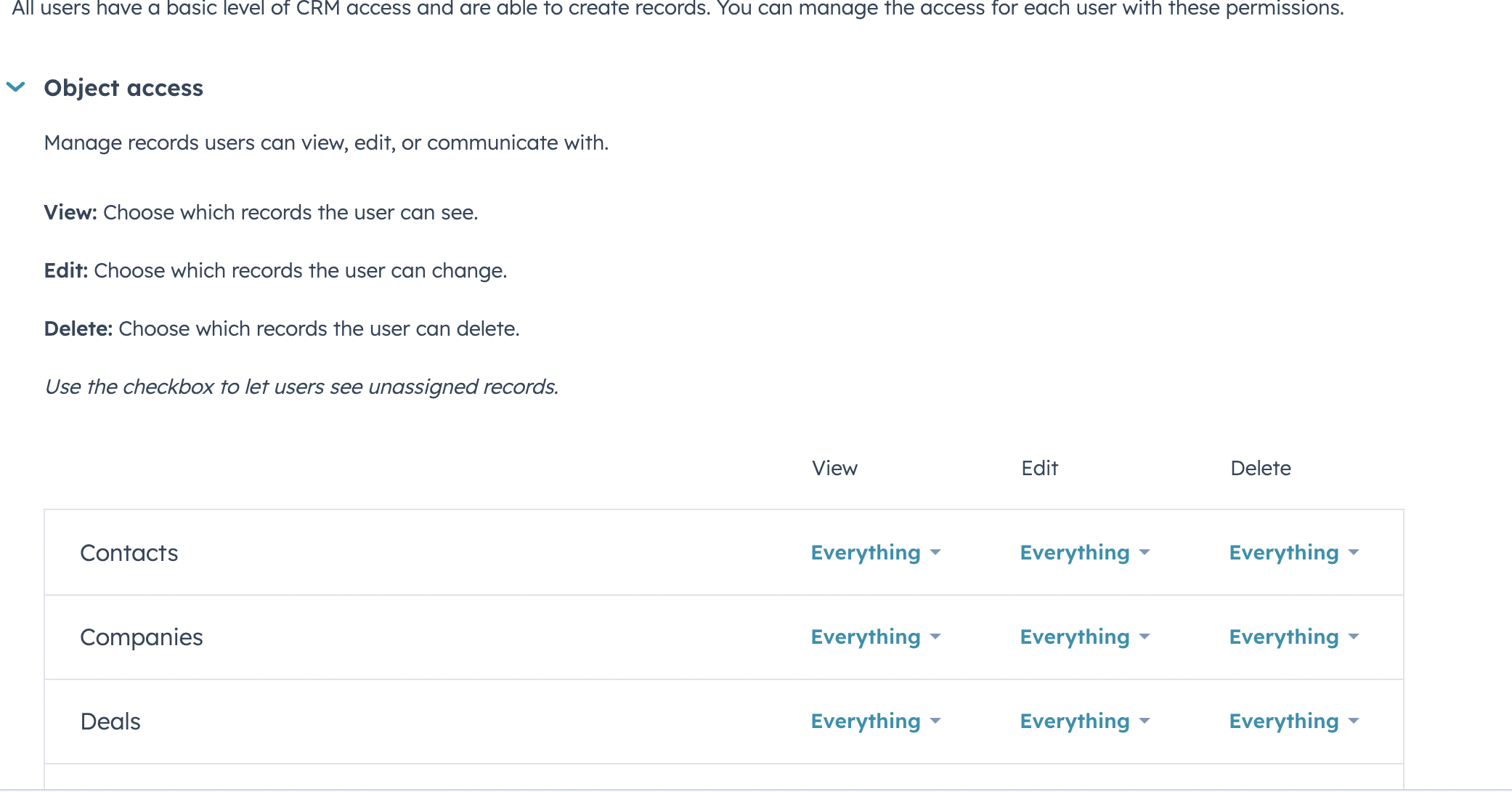
The hubspot user needs setting up a connection on valmi needs permissions to create and update CRM objects, such as Contact and Company. Go to Hubspot App, Click the settings icon, and select
 Users & Teams from the left sidebar. Select the user you want to use for the connection and click on the Edit Permissions button. Give Read and Write permissions to the objects you want updated through valmi.io.
Creating a Hubspot Connection on valmi.io
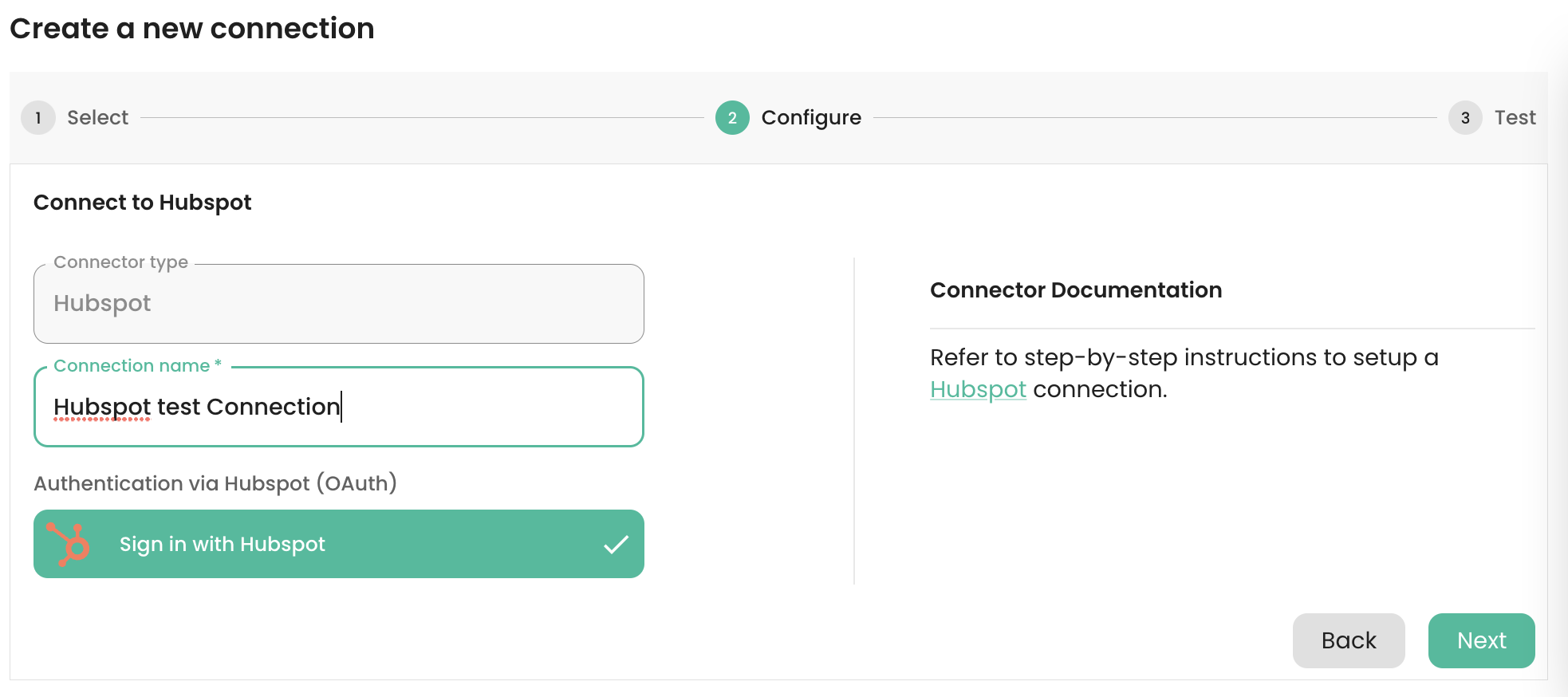
Go to destinations on valmi.io and create a new destination. SelectHubspot as the destination.
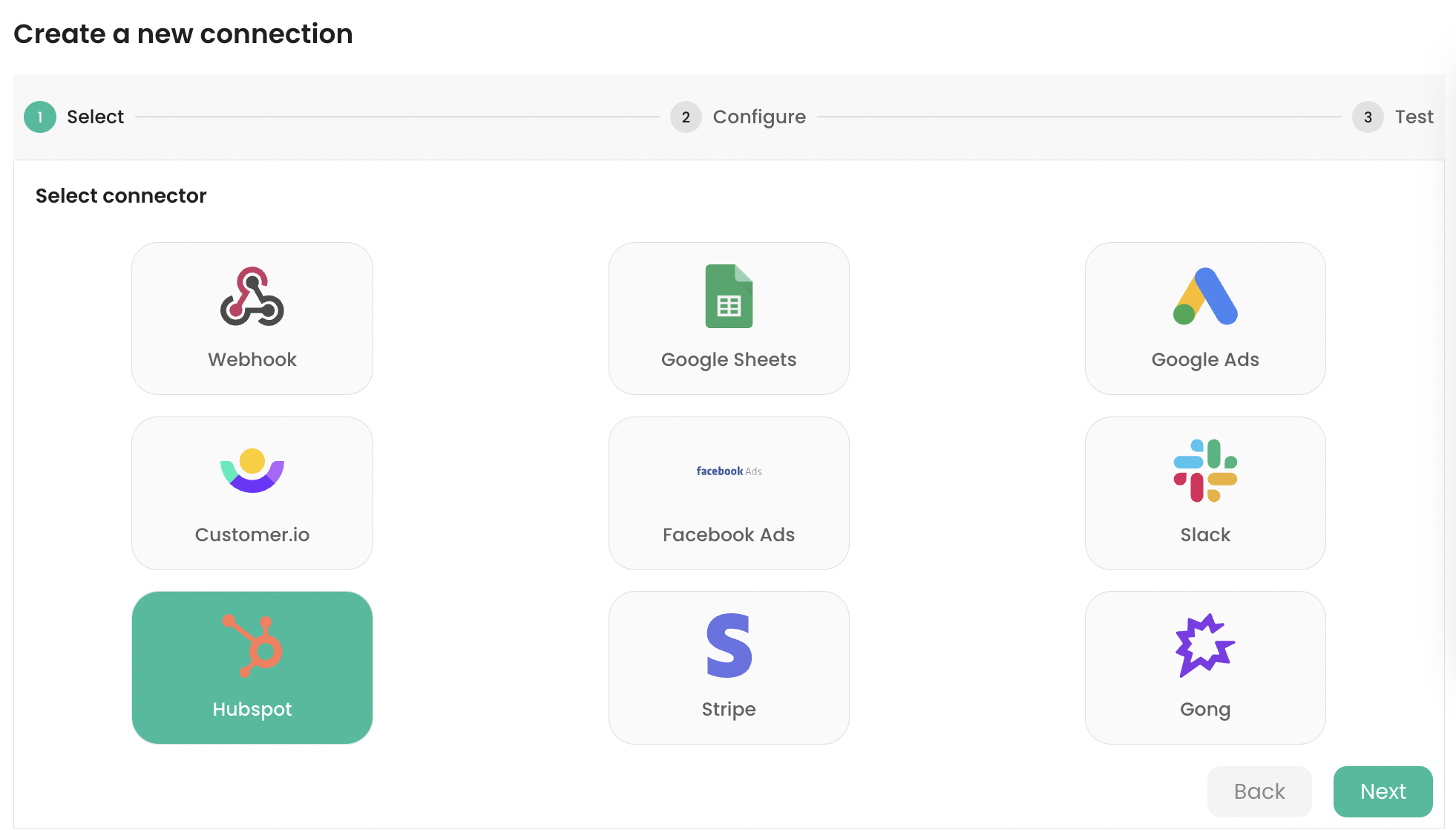
Sign in with Hubspot and enter a name for the connection. Click on the Next button to connect to the Hubspot API, test the connection, and create it.
Setting up a Sync
-
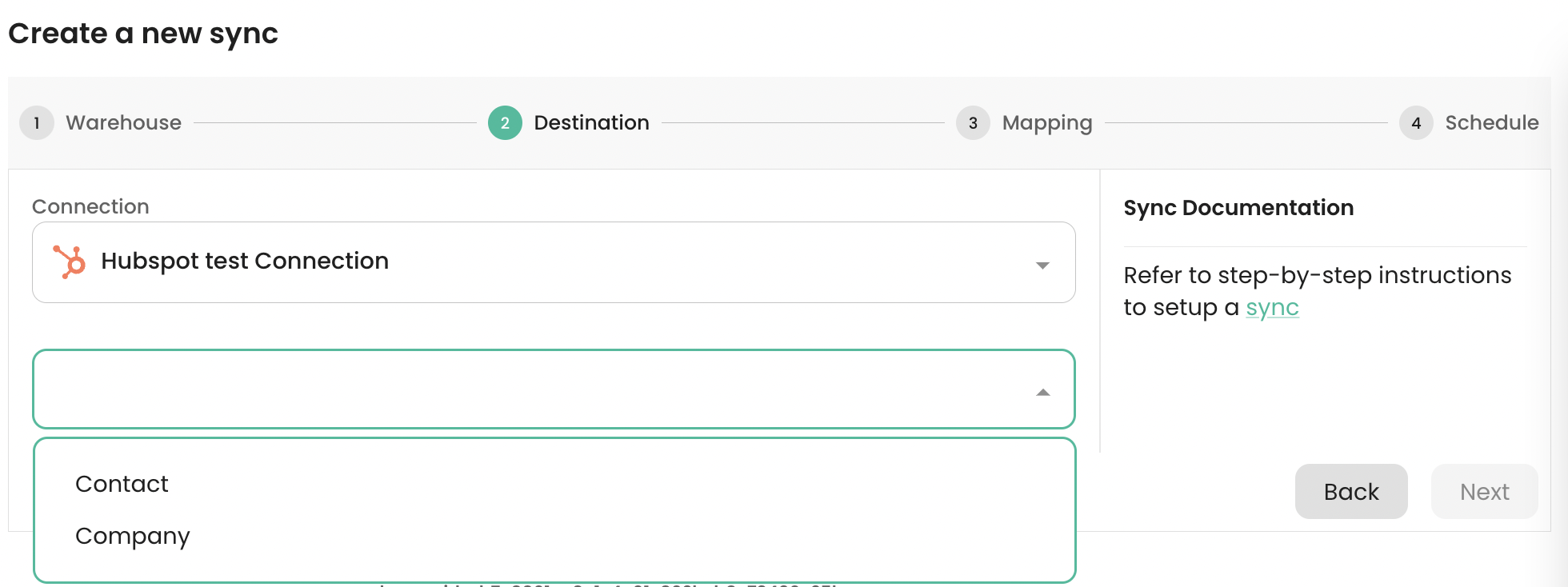
Supported Destination Modes
| Hubspot Object | Upsert | Supported Identifiers | Update | Supported Identifiers |
|---|---|---|---|---|
| Contact | ✅ | ✅ | id | |
| Company | ✅ | ✅ | id |
-
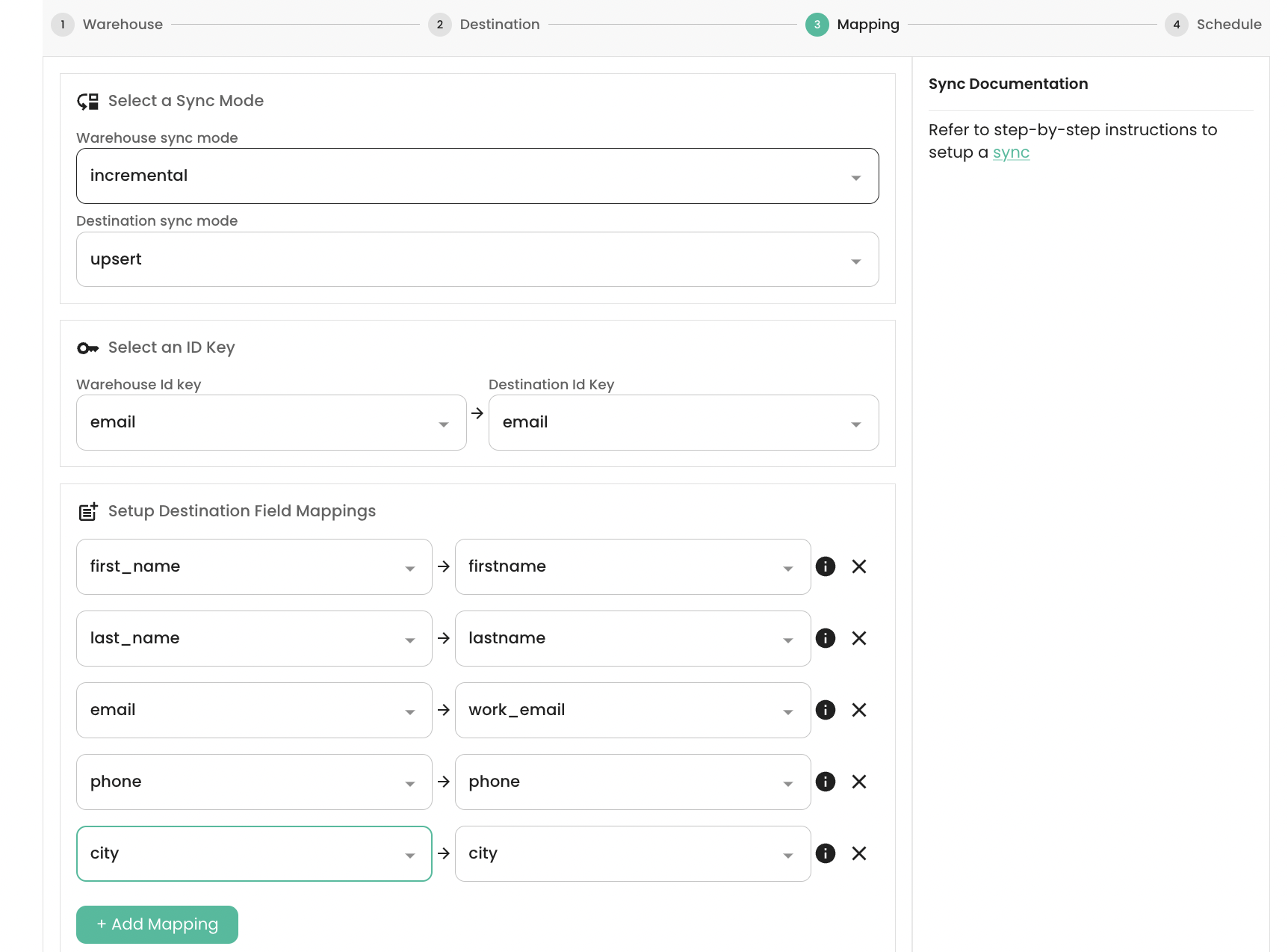
Mapping Source Columns to Destination Fields
Contact object for this example. The next screen lets the user map the source columns onto the fields of the Hubspot object. The picture below shows that we have selected Upsert destination sync mode. email has been selected as the Primary Key for the Warehouse source. The source fields first_name, last_name, email, phone, city have been mapped to the destination fields firstname, lastname, work_email, phone, city respectively.
-
Verifying data loaded into Hubspot